Sign in and your workspace
Sign in to MASAIC, open a team project, use the dashboard, and troubleshoot common access issues.
On this page: Sign in · Projects and roles · Dashboard · URLs · Troubleshooting · Next steps
Sign in
- Open your organization’s MASAIC URL (production or staging from your admin).
- Go to Sign in at
/auth/sign-in. - Sign in with the method your tenant enables:
- Email and password when password auth is configured.
- Google, Microsoft Entra ID, or other SSO when your admin enabled those providers.
Use Forgot Password? on the sign-in page when password reset is available for your account.
Local development: A trial install may use
http://localhost:3000— the flow is the same; only the host changes. Some dev setups show only SSO until password auth is enabled in environment configuration.
Projects and roles
You land on Home with a Projects table. Each row is one team workspace.
| Column | What it means |
|---|---|
| Name | Project slug and display name (for example masaic). |
| Role | Your access level (owner, member, …). Owners typically manage invites and billing where the plan allows. |
Click the project name or the row open control to enter the workspace. The sidebar switches from personal items (Home, Profile, Billing) to workspace apps grouped under Application, Operations, Agents, and more (console tour).
Workspace dashboard
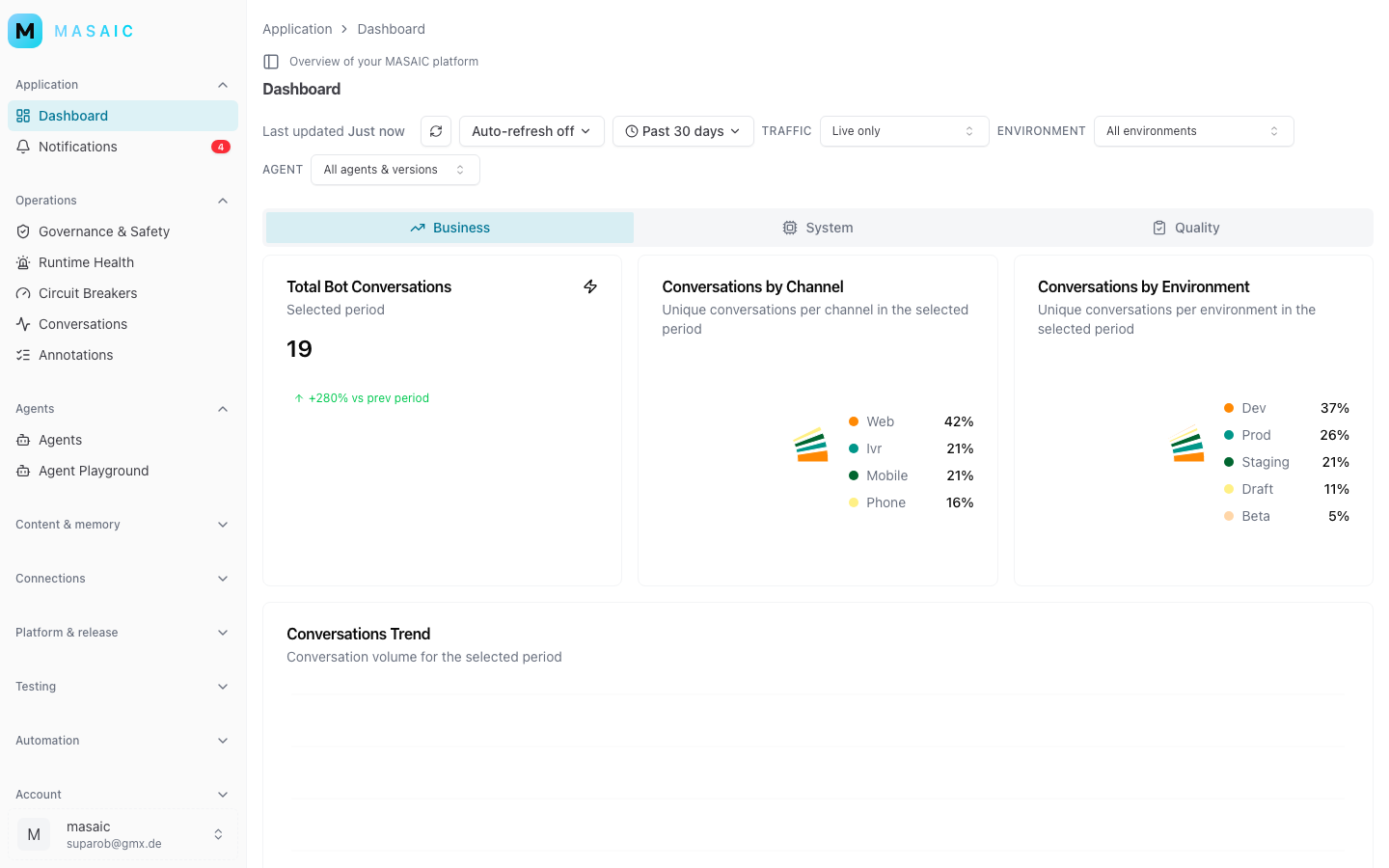
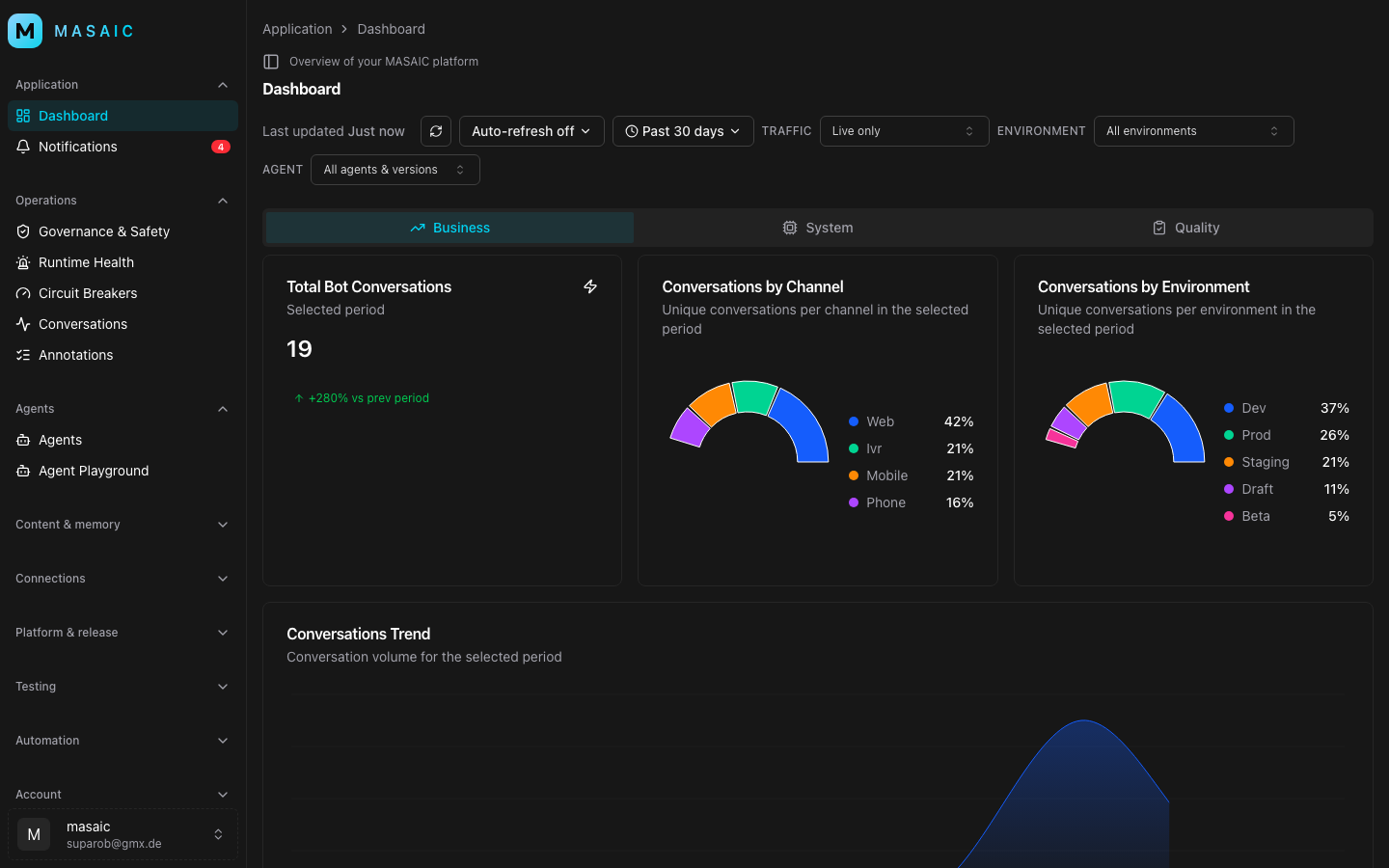
Opening a project usually lands on Dashboard — metrics, shortcuts, and a starting point for daily work.
Workspace URLs
Paths follow /workspace/<project-slug>/…:
| Area | Example path |
|---|---|
| Dashboard | /workspace/masaic/dashboard |
| Agents | /workspace/masaic/agents |
| Chat (playground) | /workspace/masaic/chat |
| Conversations | /workspace/masaic/operations/runs |
| Prompts | /workspace/masaic/prompts |
| MCP | /workspace/masaic/mcp |
| Deployments | /workspace/masaic/deployments |
| Tests | /workspace/masaic/tests |
| Automation tasks | /workspace/masaic/automation/tasks |
Replace masaic with your project slug. Bookmark the dashboard URL if you always use the same project.
Tips
- Account switcher: move between Personal Account and team workspaces. In a workspace it starts the path in the bar above the page; on your personal home it sits at the top of the sidebar.
- Personal vs team: Billing and profile under
/home/...are personal; agent work lives under/workspace/....
Troubleshooting
I signed in but only see Home / Profile.
You are on the personal account. Open Projects and select a team row, or ask an owner to invite your email.
I do not have a project row.
Your user is not a member of any team workspace yet. Request an invitation from a project owner.
Wrong project after clicking.
Check the slug in the URL bar; use the switcher or Projects list to change workspace.
Password sign-in is missing.
Your tenant may require SSO only. Use the identity provider button shown on /auth/sign-in, or ask an admin to enable password auth for your environment.
Next steps
- Teams and access — roles, invites, personal vs team.
- Tour of the console — full sidebar map.
- Agents